Private Beta V1.1 — By Invitation — Not a Commercial Release
Start every scene from a matched balance.
A panel for DaVinci Resolve Studio. It balances exposure, white balance and levels across a scene, then carries your hero grade to every shot.
You create the look. AutoBalance gives you a consistent place to start.
AutoBalance is an early beta designed to assist professional colorists, not replace them. Results depend on footage and workflow, and manual adjustments may still be required.
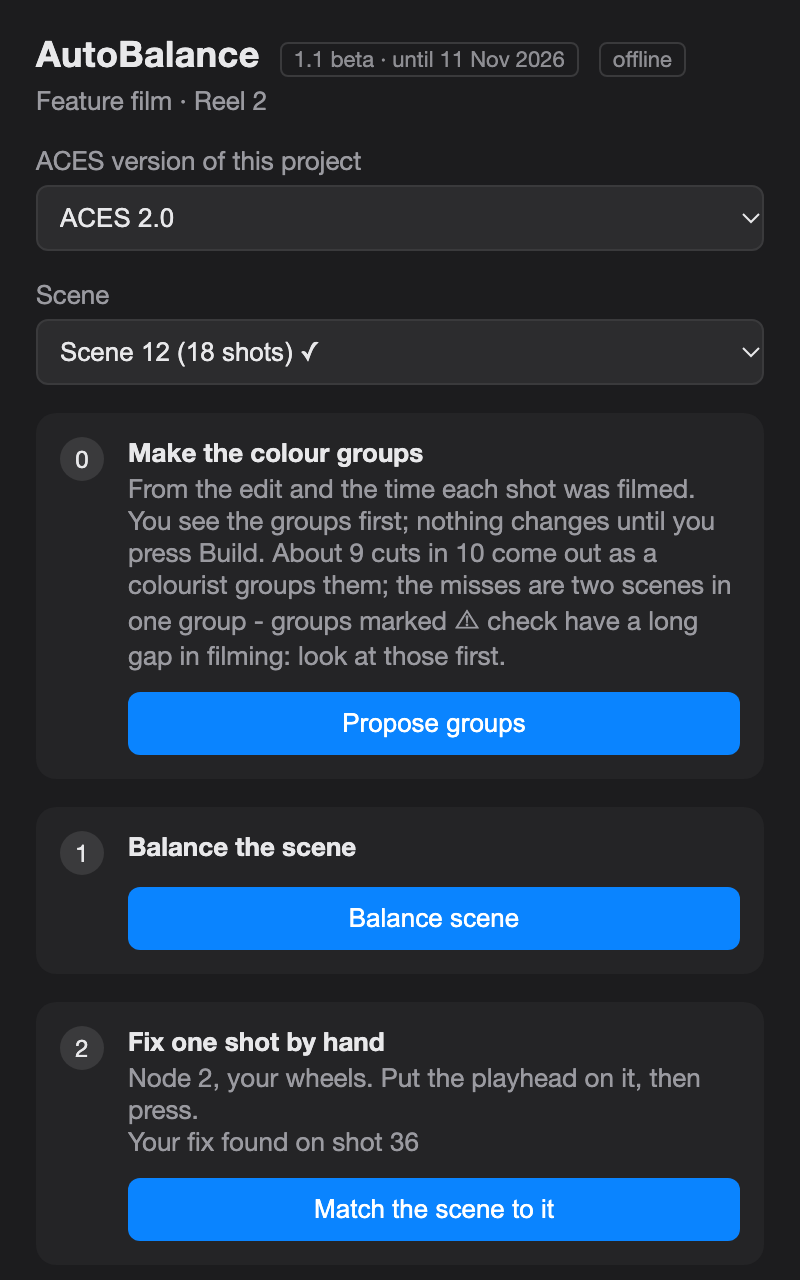
01 — Workflow
Balance. Grade your hero. Copy. Refine.
- 1
Balance
Evens exposure, white balance and levels across the scene.
Press: Balance scene - 2
Grade your hero
Grade one shot yourself, in node 2.
No press — your own grade - 3
Copy
Your grade goes to every shot. Each keeps its own balance.
Press: Match the scene to it - 4
Refine
Shots that still look different move part of the way to your hero.
— the same press
Copy and Refine happen together, with one button press in the current panel.
Before and after
Real before-and-after comparisons will be shown here once footage is cleared for publication. Nothing on this page is a simulated result.
02 — What works today
Verified, new, and experimental — kept apart.
Every feature below has been run and checked in Resolve. The label says how far.
Balance the scene
Evens a colour group and checks every shot against Resolve's own picture. After a re-edit, only new cuts are balanced; shots you approved stay untouched.
Copy the hero grade
Copies the nodes of the shot you graded to the whole group, with Resolve's own Copy Grade, and checks every shot took them. Each shot keeps its own balance; your hero is never changed. Tested with primary and log wheel grades.
Refine toward the hero
Set-ups that differ move half of the way to the hero, skin first when a face is visible. Shots of one take or set-up always move together; a move that does not help is taken back. Tested on three scenes.
DaVinci Wide Gamut
Read from your project settings, with Input DRT set to None. Tested on one project: Balance and Match the scene on four scenes, two of them with the beta build itself.
Make the colour groups
Proposes groups from the edit and the filming time. You see the proposal before anything changes; Undo puts every shot back. About nine cuts in ten matched the colourist's own groups on our test film; set-ups filmed close together can share a group, and those groups are marked for you to check.
03 — Compatibility
Only what we have tested.
Computer
- Mac with Apple silicon
- macOS 26.5
- Other macOS versions — not tested yet
DaVinci Resolve
- Resolve Studio 20 and 21 — tested on 20.3.2 and 21.1.2
- Free version — has no Workflow Integration plug-ins
Colour management
- ACES — ACEScct timeline, ACES 1.x and 2.0, Rec.709 output
- HDR output P3-D65 ST2084 1000 nit — Balance only (tested in 1.0 beta)
- DaVinci Wide Gamut / Intermediate, Input DRT None — new in 1.1, one project
- DWG with Input DRT DaVinci — not yet
- No colour management, hand-placed CSTs — not yet
Cameras
- ARRI ALEXA LogC3 — all of 1.1 tested: ProRes on one feature film, ARRIRAW on camera tests
- ARRI LogC4 · Sony S-Log3 (FX3, FX6, FX30, ZV-E1) and X-OCN · Apple Log — Balance only (tested in 1.0 beta)
- DJI D-Log M — not yet
- Other cameras and log formats — not tested yet
tested partly tested not supported or not tested · Windows, Linux and Intel Macs are not supported. Match the scene has been tested on ARRI material only.
04 — Known issues and limits
What AutoBalance cannot yet do perfectly.
Some shots still need your hand
Set-ups move half of the way to the hero, by design. On our test scenes one or two shots per scene sometimes still needed a touch.
Close to the hero is not every cut
A shot can sit close to the hero and still differ a little from the shot cut next to it.
DaVinci Wide Gamut highlights
In a DWG project, node 1 also softens the highlight roll-off a little. The amount was chosen by eye on our footage; on yours it may look different.
Open Resolve dialogs stop it
A window such as Project Settings — even one left open on another macOS desktop — stops AutoBalance. Close Resolve's dialogs before pressing a button.
Minutes, not seconds
A scene usually takes a few minutes. RAW takes longer, because Resolve develops the frames AutoBalance reads.
Beta copies expire
Each copy works for a limited time. When it ends, the panel says so and nothing in your project changes.
The installer is not signed yet
macOS asks you to allow it once, in System Settings › Privacy & Security.
Limited testing
Mainly one feature film, a commercial and our camera tests. Anything beyond the compatibility list is unknown territory.
05 — What to expect from the beta
A faster technical start, not a finished grade.
Expect most shots of a group to sit close together after Balance and Match the scene — and expect to correct some yourself.
The beta is how we learn what AutoBalance does on cameras, projects and workflows we have not seen. Judge it the way you judge any grade: with a colourist's eye.
How to give feedback
- Just work. AutoBalance notes, on your Mac, which shots you corrected by hand after it ran — that tells us the most.
- Export feedback — one click in the panel saves a file you can send to beta@autobalancegrading.com.
- Tell us directly — a shot number and what you saw, at beta@autobalancegrading.com.
06 — Privacy and tester reporting
The grading engine never goes online.
It runs on your Mac, reads your clips and writes to your Resolve project — and it has no connection to the internet. Three other parts are separate from it:
On your Mac
The fix recorder
When you correct a shot by hand after AutoBalance, the recorder compares AutoBalance's picture with the picture as you left it and keeps two numbers: how much brighter or darker, and how much the colour moved. Numbers only — no pictures — stored on your Mac.
- Consent
- Off until you say yes — asked once, before your first Balance. You can switch it off in Privacy & settings.
Sent to us, if you agree
The tester report
A short row of numbers sent by the panel to a Google Sheet we run, through Google Apps Script.
- Consent
- Asked once, the first time the panel opens. "Don't send" is always a choice; the beta works fully without it.
- When
- After each AutoBalance run, and when the panel opens.
- Switch off
- Any time: Privacy & settings › untick "Send my test results".
- If it fails
- It is tried again next time, and never interrupts your work.
What a report holds — and what it never holds
- Numbers about the runs — shots balanced, checks passed, timings
- From the recorder: how many shots you corrected by hand, and the typical size of those corrections
- Your tester code, the version, the date and time
- Footage, frames or pictures
- Clip names, project names, comments or file paths
- Your name or email
Not anonymous. Your tester code is random, but we know which code we gave you. Network data: like any internet request, a report passes through Google's servers, which see ordinary network information such as your IP address. Our Sheet stores only the columns listed above.
07 — Join the private beta
For professional colourists, by invitation.
Most of our testers come from conversations on LinkedIn. If you grade in DaVinci Resolve Studio and want to test AutoBalance on your own footage, request access.
- 1Request accessYour name, email and role or studio.
- 2Accept the beta agreementIncluding what 1.1 supports and what it does not.
- 3We approveEach request is read by us.
- 4Your personal copyInstaller and uninstaller, named for you.